Common problem: Area calculation disabled
Before we start, let's talk about a problem that many people think they have because they don't know how the software and/or area calculation works.
For U.S. GIS and forestry professionals: this article is localized from Brazilian Portuguese and expanded with practical U.S.-relevant guidance. When legal or technical terms are Brazil-specific, a brief note explains the U.S. equivalent.
You open the attribute table and calculate the area and are faced with the calculate geometry window below:
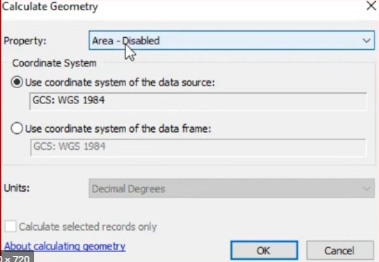
Area calculation disabled. This happens because in ArcMap, you can only calculate the area if either your layer (Shapefile or other) is in a projected coordinate system (PCS) like UTM for example, or if your data frame is also in PCS.
In the case above we see on the screen that both the layer and the data frame are in GCS (geographical coordinates), therefore the area calculation will be disabled.
To enable, simply run the PROJECT tool to reproject your layer to a PCS system such as UTM. Or, put your data frame in PCS (properties>Coordinate system) and go back to recalculate. In ArcGIS PRO this does not happen.
Having explained this, let's move on.
Calculate Geometry in ArcGIS
Many certainly use and love the Geometry Calculator functions in ArcGIS. Many still don't know it and many others only use it to calculate area, unaware of its other functions.

- Perimeter: Calculates the perimeter of a polygon.
- Length: Calculates the length of lines (line shp only)
- X-coordinate of centroid: Calculates the X-coordinate of the geometric center of polygons, lines and annotations.
- Y-coordinate of centroid: Calculates the Y-coordinate of the geometric center of polygons, lines and annotations.
- X-coordinate of point: Calculates the X-coordinate of the point (point shp only)
- Y-coordinate of point: Calculates the Y-coordinate of the point (point shp only)
|
|
Area
|
Perimeter
|
Length
|
X centroid
|
Y centroid
|
X point
|
Y point
|
|
Polygon
|
x
|
x
|
|
X
|
X
|
|
|
|
Polyline
|
|
|
x
|
X
|
X
|
|
|
|
Annotation
|
|
|
|
x
|
x
|
|
|
|
Point
|
|
|
|
|
|
x
|
x
|
In practice
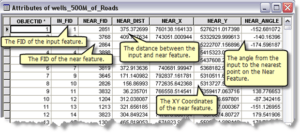
The Shape_Area, Shape_Length fields
In geodatabases, these fields are generated automatically and the values are also maintained automatically and dynamically. The units are always in ‘map units’. Map units are based on the coordinate system used. So, to find out the map units, right-click on the layer and choose ‘Properties’, then look at the ‘Source’ tab. Scroll down to see the coordinate system information and among them look for the ‘Linear Unit’ item.
If the Linear Unit were meters (as usual for UTM coordinate systems), for example, the area would be in square meters.

If you want to get rounded versions of the values or get the values in some specific units, you would have to create a new field (type DOUBLE) and then calculate the values. You can use the ‘Field Calculator’ to obtain the values, but even better is the ‘Calculate geometry’ option:
Right-click on a field header (of type DOUBLE) in the attribute table and select “Calculate Geometry”. In the dialog box that appears, you can choose which units you want to use (e.g. hectares, kilometers, etc). See the beginning of this post.
Please note that if you use the Field Calculator or the Calculate Geometry option to obtain these values, they will NOT be automatically maintained by the system, unlike existing geodatabase fields. Therefore, if features are edited, you will need to rerun your calculations to get updated values.
The SHAPE_Length/SHAPE_Area fields may be unreliable if they are in Shapefile or non-geodatabase formats, or if they are not the versions of these fields being produced by ArcGIS for the geodatabase, as they were likely exported/copied, and the values may no longer be correct if the underlying shapes change.