ArcGIS FieldMaps , just like ArcPad used to be, is now Esri's default app for map viewing in the field. You can create your maps in ArcGIS PRO and load a map package file via USB cable onto your smartphone or tablet, allowing you to use it in the field even without a data connection. No license is required because Explorer/FieldMaps is a free app.November 2020 Update: Now, FieldMaps is Esri's main app, combining Explorer, Collector, and Tracker into a single application.
Let's see how to create one and how to load it onto Android, Windows, and iOS devices.
The first thing to know is that to create offline maps for use in Explorer, you need to create a mobile map package (now known as
MMPK ) in ArcGIS Pro.CREATING A MAP PACKAGE FOR OFFLINE USE IN ARCGIS PRO
- Create a project in ArcGIS Pro.
The smaller (more zoomed in) the value you choose, the larger the file size. Make sure your memory card can handle it.
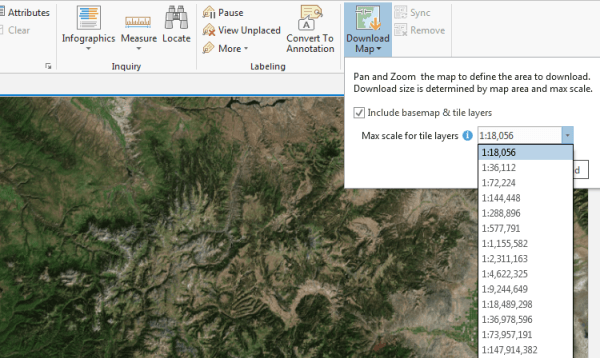
To add basemaps like imagery to the offline map, you need to create Tile Packages (tpk or tpkx) first. To do this, add the basemap to the map, then on the Map>Download Map tab, create your tpk with your preferred zoom level. Once created, it will be added to the map. Remove the online basemap, save, and then follow the packaging process below.- Package the data using the geoprocessing tool
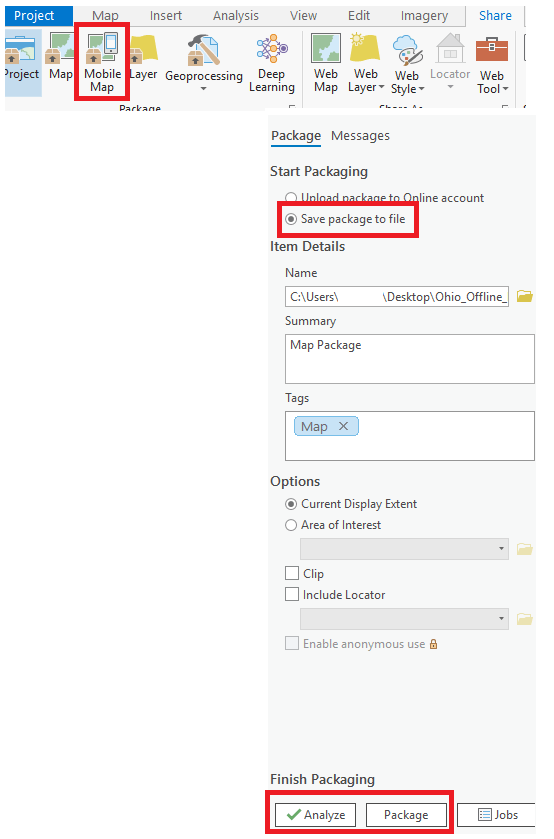
Create Mobile Map Package from the SHARE menu. - Choose “Save package to file” to export an mmpk file, which you will later transfer to your phone or tablet. Fill in the fields and define the area to export in Options. Click Package.
How to use the Share menu to export your mmpk file for use in Explorer
Install the
–Explorer for ArcGIS FieldMaps App . Offline work does not require an Esri account or license.Before
–opening the app, connect your Android tablet or phone to your computer via USB cable and navigate to the ArcGIS/mmpks folder, then copy the generated mmpk file from the previous step. In Field Maps, paste the mmpk into the following folder: Internal storage or Internal shared storage\Android\data\com.esri.fieldmaps\files\mappackages
For iOS, it's a bit more complicated. For iPads and iPhones, use iTunes, go to your device, and select Apps. In the File Sharing section, select Explorer and copy the .mmpk file into this folder.
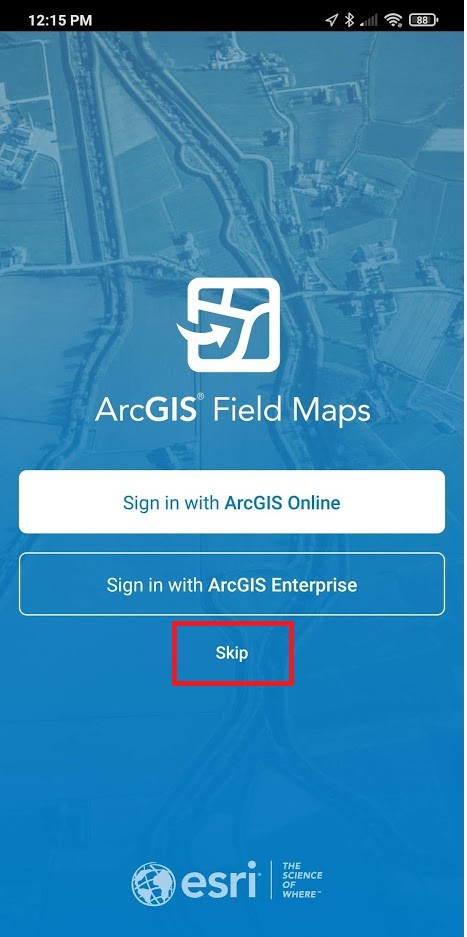
Open Explorer on your phone. On the home screen, select "Start without signing in" or, in FieldMaps, tap SKIP:
How to access Explorer without creating an Esri account

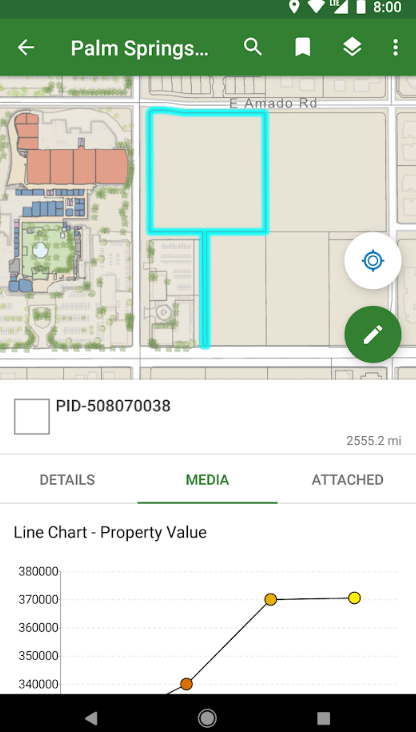
for specific information about this app Your mmpk map will now be available to open and use both online and offline. If the tpk image doesn't appear, it's because both need to be in the same projection, as Explorer does not automatically reproject.
see here how to fix this. Updated: Explorer for ArcGIS on WINDOWS 10
The
- Beta
Official version of Explorer for ArcGIS is now available on the Microsoft Store.Click here and install. After installation, open and continue with or without signing in - To load mmpks in the official version, simply click the “three dots” menu [...] and select Import Map. Browse for the mmpk and wait for it to load. Done!
- To load offline mmpks in the beta version, navigate to the folder C:\Users\<YOURUSERNAME>\AppData\Local\Packages\
Find a folder like “Esri.ExplorerforArcGISBeta_eytg3kh68c6a8”\LocalState\mappackagesCopy your mmpk file into this foldermappackages to work offline Importing MMPK on iOS/iPhone
Importando MMPK no iOS/Iphone
- If you have an iOS device like an iPhone, it is also possible to use an mmpk on it, but since everything on Apple is more restricted and it doesn't even support memory cards, you will need iTunes to copy the file into the phone (follow this procedure if you encounter problems).
- Create the mmpk file;
- Copy it to your iPhone using iTunes
- Open the Explorer for ArcGIS app on your iPhone
- Update your map list on the device by pulling down with your finger;
- The map will appear in the “on device” list. Now just open and use it.