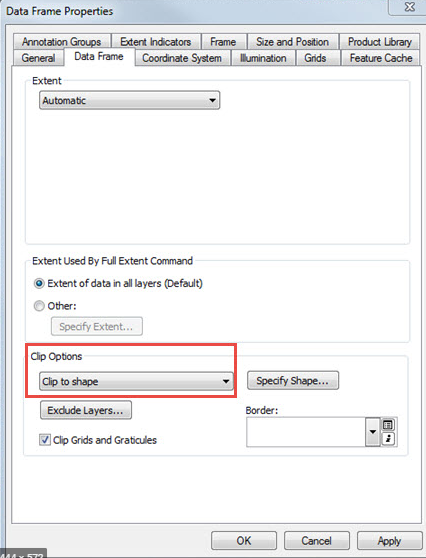
If you need the data within a map data frame to have a shape other than rectangular, you can clip the data frame's drawing to meet the map specifications using the Clip options in the Data Frame Properties tab. The clipping does not alter the actual map data, only the data visualization. The labels also respect the clipping shape. They will be redrawn so that you do not see any labels outside the clipped perimeter.
Steps
Let's assume you have already added the shapefile of the specific municipality to your project. Instead of clipping all the layers of your project to the extent of the municipality, you will use Clip to Shape.
- Right-click on the data frame, point to Properties;
- Click on the "Data Frame" tab in the Properties dialog that opened earlier;
- Click on Options and in the drop-down menu select Clip to shape;
- Click the Specify Shape button
- Click to select the shapefile that will be the boundary (outline)
- Click OK.
Optionally, try changing the border option and other settings to see the available alternatives.
Click OK. Done, now your data is virtually bounded by your perimeter, without needing to clip and alter all the data.
How to clip frames in Data Driven Pages
- Right-click on the data frame you want to clip and click on Properties.
- Click on the Data Frame tab in the Data Frame Properties dialog.
- Click on the drop-down menu Clip Options and select Clip to current data driven page extent.
- Click OK. Optionally, change the border option
Click OK.