The use of GeoJSON is becoming increasingly popular in web applications and mobile apps that need to display geographic data.
While Shapefile is a proprietary geospatial data file format developed by ESRI used to store geographic information and its associated attributes. GeoJSON is an
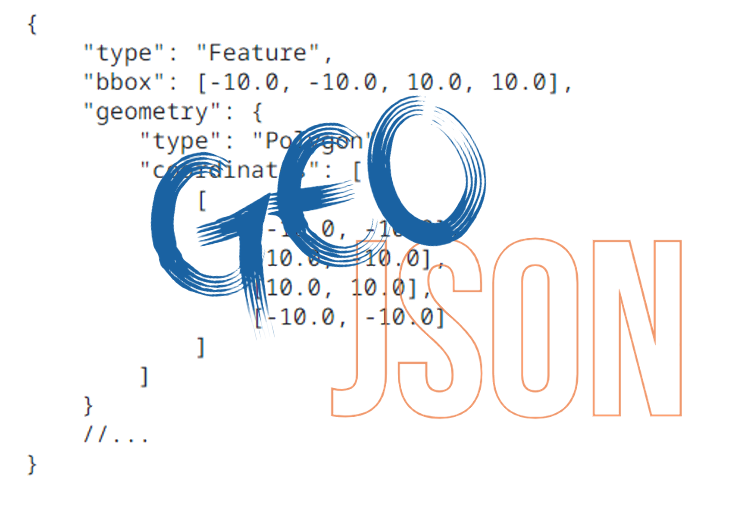
open format based on JSON designed to represent simple geographic data structures and their non-spatial attributes. GeoJSON is easier to work with than Shapefile because it is text-based and can be easily read and manipulated by computer programs like Notepad and Notepad++. Converting a Shapefile to GeoJson using ArcGIS
Here is a step-by-step guide to convert a shapefile to GeoJSON in ArcGIS:
Open ArcMap and add the shapefile to the map by clicking the “Add Data” button or going to File > Add Data > Add Data.
- Right-click the shapefile in the Table of Contents and select “Data” > “Export Data”.
- In the “Export Data” dialog box, select “GeoJSON” as the “Output Format”.
In the “Output File” field, provide a name for the output GeoJSON file and choose a location to save it. - Click the “OK” button to start the conversion process.
- When the conversion is complete, the GeoJSON file will be saved in the specified location.
Alternatively, you can also use “ArcToolbox” to convert shapefile to GeoJSON, - Open the ArcToolbox window by clicking the “ArcToolbox” button on the main toolbar or going to “Tools” > “ArcToolbox”.
- Navigate to “Conversion Tools” > “To Geodatabase” > “Features to JSON”.
- Fill in the required fields, such as Input Features, Output JSON File.
Run the tool, and once the process is finished, you will have a GeoJSON file in the specified location.
Converting a Shapefile to GeoJson using QGIS
Source: Internet
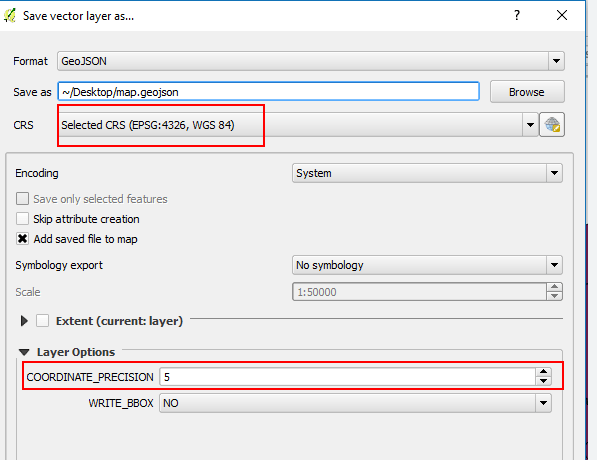
Open QGIS and click the “Add Vector Layer” button or go to Layer > Add Layer > Add Vector Layer.
- In the “Source” field, navigate to the location of the shapefile you want to convert. Select the file and click “Open”.
- After the shapefile loads, go to Layer > Save As.
- In the “Save Vector Layer as” dialog box, select “GeoJSON” as the “Format”.
- In the “File name” field, provide a name for the output GeoJSON file and choose a location to save it.
- Click the “OK” button to start the conversion process.
- When the conversion is complete, the GeoJSON file will be saved in the specified location.
- You can also use Vector > Data Management Tools > Export > Save Features As… to save selected features from a shapefile as a GeoJSON file.
- Resources
Shapefile file sources
Build your map in GeoJson and download the file Related