One of the most powerful labeling features in ArcGIS 10.x for Desktop (ArcMap) and ArcGIS PRO is the ability to create numeric Key Numbering labels for dense feature maps. When labels cannot be placed directly without overlap, this technique preserves readability and keeps every feature represented.
Key Numbering is especially useful in U.S. forestry and land management workflows where small harvest units, survey parcels, or utility corridor segments are tightly packed. Rather than crowding the map with text, each feature receives a unique number that can appear in a legend or annotation table, making the map easier to scan and interpret.
In areas of a map with high feature density (for example, small tracts, building clusters, parcel subdivisions, or adjacent municipal units), it is difficult to place labels without overlap or truncation. You can also use leader labels for specific features; see click here for that workflow.
Often only one or two labels are placed across the entire area and the remaining features are left unlabeled. A reliable solution is the Maplex label engine’s Key numbering strategy, also known as numeric key labeling, available in ArcMap and ArcGIS PRO.
Why use Key Numbering?
Key Numbering is a professional labeling choice for maps that need to show many features without sacrificing clarity. It is frequently used for inventory maps, parcel exhibits, right-of-way plans, and operational GIS products where every feature must be referenced without cluttering the map.
Video demonstration
How to create Key Numbering in ArcMap
First step
Start by adding the layers you want to label to the map. In the Labeling toolbar, enable the Maplex Label Engine so you can use advanced placement and fitting strategies.
1) Enable the Maplex Label Engine in the Labeling toolbar.
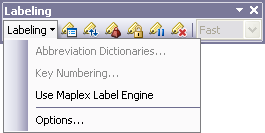
2) In the Labeling toolbar, click Labeling > Key Numbering to enable the feature.
3) Click New (or use Rename to change the default key numbering group name).
4) Enter a descriptive name for the key numbering group.
5) Click OK.
Second step
Next, activate the labels for the layer you want to display. Open the layer properties, go to the Labels tab, and then click Placement Properties.
1) Turn on labeling for the layer that should display numbered keys.
2) In layer properties, go to the Labels tab and click the Placement Properties button.
3) Click the Fitting Strategy tab. Deselect all options and leave only Key numbering selected.
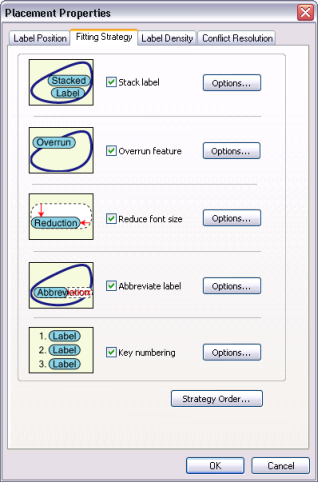
4) Click Options and choose the group created in the first step.
5) Click OK and then OK again to close the dialog boxes.
At this point, the numeric key labels are created. The final result depends on fine-tuning the label group and placement rules.
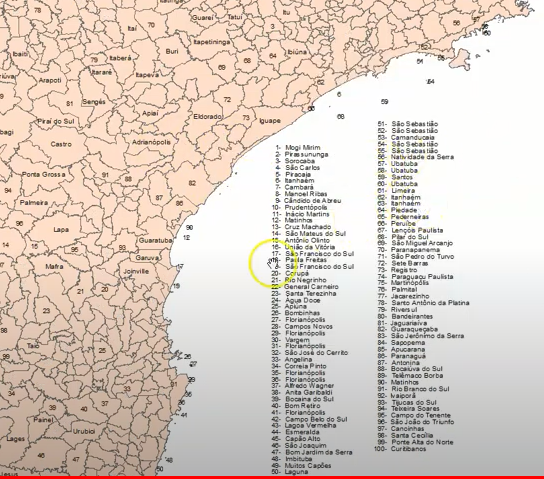
Return to the first step and adjust the minimum and maximum number of label lines, separator character, alignment, and other settings until the labels display the way you need.

Also adjust the weight of each layer or feature relative to labels using Label Weight. Give a higher weight to layers that should not be overlapped, such as parcel boundaries or infrastructure lines, while allowing non-critical background layers to yield space.
Finally, you can convert the labels to annotation and position them precisely on the map, which is useful for print-ready layouts and delivery of regulatory or stakeholder-ready maps.
How to do this in ArcGIS PRO?
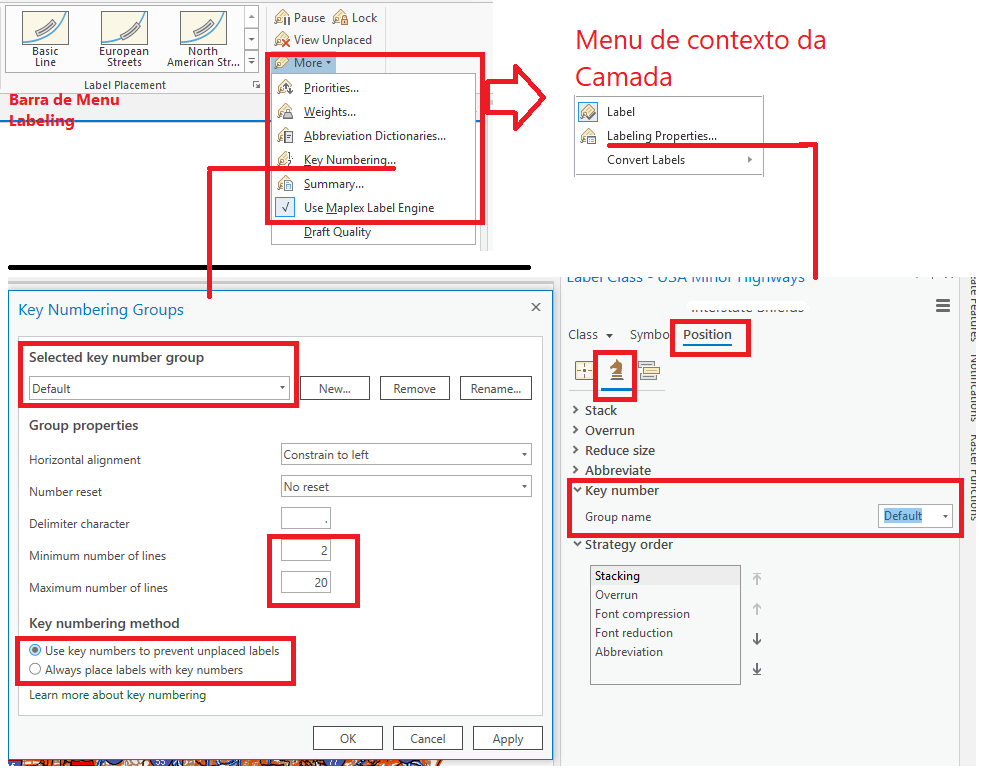
The steps are similar in ArcGIS PRO, although the controls appear in different panes. The screenshot below shows where to find the key numbering settings in the PRO labeling workflow.
If this article helped you, please share it and leave a comment below. Thank you!